Εμφάνιση αναρτήσεων με ετικέτα Tools. Εμφάνιση όλων των αναρτήσεων

How To Add Adsense Inside Blogger Post

Sometime you must be worried about your less google adsense revenue and try to be the best to increase the revenue but all in vain and can never be successed in such situation. Although we know that google adsense highly revenue mosltly depands upon the SEO of your blog "highly seo rank of your blog better will be the google adsense income" So in today post we will give you some amazing tips through which you can easily increase your google adsense revenue.

One of the best way to increase the google adsense revenue is to change the locations for your adsense banners and insert it into proper area where visitors come a across. Now to do this we will add the adsense code in below every post, after in every post title and in sidebar. In this way you will get maximum clicks on your ads once used it in proper area. 

Be careful not to use so many ads on your blog it will increase your blog loading time see here Things that Increase Your Blog Loading Time


How To Add Adsense Ads Inside Your Blogger Post

Now you can easily put your ads inside blogger post just follow these simple steps:
  1. We will have to parse our AdSense code>>>(Parse It Here)  Or (Parse Here)
  2. Now you will add your parse code in the below piece of code and then use it in template

Add Your Adsense Inside Post Left Side


<b:if cond='data:blog.pageType == "item"'>  
<div style="float:left;">
your adsense code goes here </div>
</b:if>  

Add Your Adsense Inside Post Right Side


<b:if cond='data:blog.pageType == "item"'>  
<div style="float:Right;">
your adsense code goes here  </div>
</b:if>  

Now Put Your Adsense Customize Code In This Way

  • Go to blogger dashboard >>edit html>>expand widgets:
  • Press (ctrl+F) and search this  <data:post.body/> if you find it twice in your template <data:post.body/> then try for both and check the result which is one is correct.
  • If you want to add adsense ads at the top of post then simply past your code just above it  <data:post.body/>
  • If you want to add adsense ads at the bottom of post then simply past your code just below it <data:post.body/>
  • If you have any query then feel free to ask your response will back in an hour.
  • Join us your choice here Facebook, Twiter, Google Plus, Blogger.  
Read more

How To Create Blogger Template From Scratch

Create Blogger Template
As we've been always talking about Blogger and blogging, today we're going to make a long discussion on one of the most popular question asked blogger.com users that how to create a blogger template. Many bloggers have asked me this question on Facebook and through other contact services so I thought why not should I make a long post specially for them. Basically, This thing come in Web Design and Development so a person must have these skills in order to create blogger template otherwise reading and understanding this long article will be wasted. Today, I'll not take your too much time in this kind of discussion so let's start discussing about the main topic.

Requirements To Create a Blogger Template

First of all, I would like to mention the requirements which everyone should have fordesigning or creating blogger template because any common man can't easily make blogger templates it needs several skills. The first thing is that, you should know Blogger.com perfectly. How to create blog, making posts and pages, doing little customization, playing with gadgets and also how this platform actually works. After this, The basic knowledge of web design required in which HTML and CSS are most important. In blogger, We can use HTML, CSS, XML and JavaScript. If you know all these languages then you'll not face any problem in designing professional blogger template.

Step 1. Preparing Testing/Demo Blog For Creating Template

It is common thing that before creating any blogger template you'll make the demo blog for that template. So, create a blog and publish more than 10+ posts on it. There should be one image, all heading, 4-5 text paragraphs, numbered list, bullet list and quote in every post. We'll design these each and every thing so make 10+ posts with these all things and also integrate some important widgets in footer or sidebar. After that, you can use any default template on it but soon we'll remove it and design another template on it. 

Step 2. Understanding Basic Structure Of Blogger Template

Before starting the template we should understand the basic structure of blogger template. We can also say that we're going to create simple empty page of blogger template. So, I've prepare the basic coding which will help you to understand basic structure.
<?xml version="1.0" encoding="UTF-8" ?>
<!DOCTYPE html>
<html xmlns='http://www.w3.org/1999/xhtml' xmlns:b='http://www.google.com/2005/gml/b' xmlns:data='http://www.google.com/2005/gml/data' xmlns:expr='http://www.google.com/2005/gml/expr'>
  <head>

    <b:include data='blog' name='all-head-content'/>

<title>
      <b:if cond='data:blog.pageType == &quot;index&quot;'>
        <data:blog.pageTitle/>
        <b:else/>
        <b:if cond='data:blog.pageType != &quot;error_page&quot;'>
          <data:blog.pageName/> | <data:blog.title/>
          <b:else/>
          Page Not Found | <data:blog.title/>
        </b:if>
      </b:if>
    </title>

    <b:skin><![CDATA[

body {
background:white;
color:black;
}
#Navbar1 {dispaly:none!important;}
]]></b:skin>

</head>
<body>

  <b:section class='navbar' id='navbar' maxwidgets='1' showaddelement='no'>
<b:widget id='Navbar1' locked='true' title='Navbar' type='Navbar'/>
</b:section>

</body>
</html>
In the above basic coding, you'll see that there are XML and HTML tags in the starting which means that this is built with XML and HTML. The main extension for this coding will be .XML. If you copy the above coding and paste it with the whole coding of a template then it will be saved and will show nothing on blog because this is simple blank HTML page. Let's understand the basic structure.

1. XML and HTML tags : As I already told you that XML and HTML tags are the main tags in which whole template will be stored. If we want to save this template in computer then we'll choose .XML extension while saving because blogger supports only .XML file templates.

2. Long <title> Coding : If you look in the title code below <head> you'll see long coding between <title> tag. Basically, That is customized title coding which has many benefits. We've used conditional tags to customize this title coding. The first condition tells that if someone opens the homepage or index main page then it will write the blog title as title of the webpage. Second condition is to show the post or page title first and show blog title after post or page title. In the last, there is 404 error page title coding.

3. <b:skin> Tag For Storing Stylesheet : There is additional built in tag for blogger templates to use <b:skin> tag with CDATA for storing the whole CSS or stylesheet of the blog. In these tags, you'll only see CSS which is being used in the whole blog. So, every CSS which you'll write should be placed in these tags.

4. <b:section> Tags For Widgets : In blogger, we use these tags to create widgets. Most important things like Blog Title and Content are done by implementing widgets in templates. In short, There are default widgets which are for Header and Blog Content which we use while creating template. For creating widgets, we should cover them with<b:section> tags which will help us to prepare layout page.

Step 3. Creating Header 

After learning the basic structure, let's get started by creating header of blog. Basically, There are only two important things to create a blogger template. First one is Header and second one is Blog Content. Other things are also important but these are most ones. We'll use custom Header widget and will customize it according to our needs. Basically, Header is a widget and you know for creating widget, we should create section for a single or multiple widgets. Copy the code below and paste it anywhere in the <body> of template where you want to display Header widget.
 <b:section class='header' id='header' maxwidgets='1' showaddelement='no'>
        <b:widget id='Header1' locked='true' title='' type='Header'></b:widget>
</b:section>
The above coding is not complete coding of Header but when you'll integrate the above coding in template then it will automatically become longer. Save this template, reload the Edit HTML page and you'll see expand arrow in the left side of <b:widget> tag. Blogger will automatically write the default coding on it. So, let's understand this header coding.

1. <b:section> having class='header' and id='header' : First of all, in the section tag, you'll see class='header' and id='header' which are common CSS class and id tags. So, by the help of these tags, you can do customization of header like giving specific width, height, margin, padding, font size, color etc to the header section only.

2. <b:section> having maxwidgets='1' : I don't need to explain these simple things, but for totally newbies I'll explain it. There is another XML tag of blogger which ismaxwidgets='1' by this, we can simply set the number of maximum widgets in that section just replacing the number 1.

3. <b:section> having showaddelement='no' : This is just another simple tag by which we can disable or enable the Add a Gadget option.

4. <b:widget> having id='Header1' : In the header widget, there is CSS id tag by which we customize the header widget with CSS.

5. <b:widget> having locked='true' : This tag allows you to lock and unlock widgets easily by choosing true or false. When the widget is locked, one can't easily edit that through layout page.

The current settings for this header widget and section are fine so we'll not edit them. Below, I'm going to give you class and ID CSS tags which will help you to customize header widget. Simply, add this below CSS between <b:skin> tag and fill them with your own properties.
#header {  }

#header h1 {  }

#header h1 a {  }

#header .description {  }

Step 4. Creating Pages Menu Widget

I forgot to mention the pages menu widget which is also important for creating menu. That kind of menu only displays the those links which are actually pages made in blogger blog. In default blogger templates, it's mostly used so here I'm going to teach you how can we implement them in our blogs. I'll just give you default XML and HTML coding and will show you way to design that with CSS. If you're well known with HTML and CSS then you can easily make custom menu there anywhere in the template. But for this pages menu, you might face problem. Let's get started.

This pages menu widget is also done by creating widget section and widget. So, below I'm going to give you another code which will be having section tags and there will be page list widget which is the main thing. Just put the below coding anywhere where you want to show up that pages menu widget. 
 <b:section class='tabs' id='crosscol' maxwidgets='1' showaddelement='yes'>
        <b:widget id='PageList1' locked='false' title='Pages' type='PageList'>
       </b:widget>
</b:section>
As we did in Header widget, this is also just a little piece of tags which will automatically complete itself with the default coding. For the customization, it's simple you can just take ID and Class tags from the above code and start writing your own CSS for them. But, This time I'm also going to give you CSS empty tags in which you've to fill properties according to your needs and design that better.
.tabs {  }
#corsscol {  }
#PageList1 {  }
#PageList1 ul {  }
#PageList1 ul li {  }
#PageList1 ul li a {  }

Step 5. Creating Blog or Content Widget

This is the main thing should is important most of all. In blogger, we create a default widget which is actual posts widget. In the layout pages, you might have seen the big widget named Blog Posts. We can easily create default blog posts widget with a bit of coding but customizing that according to our needs can be little difficult. First of all, open the html editor in blogger and paste the following blog posts widget code there.
<b:section class='main' id='main' preferred='yes' showaddelement='no'>
 <b:widget id='Blog1' locked='true' title='Blog Posts' type='Blog'>
 </b:widget>
</b:section>
Just like other widgets, we've also created section for that blog posts widget. After saving this widget in template, reload the html editor it will gain default coding of blog posts widget automatically. Here, get started in customizing the posts section according to your needs. Look at the class and id tags and write CSS for those tags to beautify posts area. When you'll expand blog posts widget, you'll get many <b:includable> tags that are actually in posts area. There will be specific includable tag having id='post' andvar='post'. If you expand that includable tag then it will show up the coding of posts area only where you can do customizing easily.

Step 6. Creating Custom Gadget Area Like Sidebar and Footer

The above five steps will get you a simple template but creating custom gadgets area can be useful like making sidebar, footer and other gadget necessary gadget areas. So, in this step we're going to learn that how can we easily create custom gadgets section in blogger layout. We'll just write <b:section> tag in which we can add widgets as more as we want. Go to html editor and paste the following code anywhere you want to create the gadgets area or section.
<b:section class='' id='' maxwidgets='' showaddelement='yes'>

</b:section>
There is nothing special then <b:section> tags in the above coding. Class and ID tags are empty where you can add your own custom names to call the CSS for that section. You can use class and ID to call CSS and beauty that gadgets section by adding any width, height, padding, margin etc. Another tag, maxwidgets='' is also in which you write any maximum number like 10 so that section wouldn't contain more than 10 widgets. If you want to show Add a Gadget option in layout then remain the yes in the showaddelement tag otherwise overwrite it with no.

Step 7. Setting up Layout Page

While creating template, also take care of layout page in blogger blog because that page depends on the template of a blog. If you do the things correctly then it won't get messed up but if you're facing problem then we've solution for this. We can rearrange the widgets and gadget sections there through using simple CSS. And for what, I've already written great post on fixing blogger layout page messed up. For rearranging the widgets in layout page, we'll use CSS and it will be like this. 
body#layout #widgetID { The Properties For Widget In Layout Page Goes Here }
body#layout #widgetID2 { The Properties For Widget In Layout Page Goes Here }
body#layout #widgetID3 { The Properties For Widget In Layout Page Goes Here }
body#layout #widgetID3 { The Properties For Widget In Layout Page Goes Here } 

 Advanced Guide

Anyone who has basic knowledge of web designing can develop blogger template just by using simple HTML and CSS. Newbies might face problem in understanding the structure of blogger template but if you keep doing practice then you in a few days, you can be expert in that. Those web designers who can create HTML Templates or any other blogging platform themes then I don't think they're going to face any problem. Even designing blogger templates is one of the most easiest platforms than others. 

Above we've only created the simple blogger template which contains header, pages menu and blog posts. There is no sidebar and footer in the above template. You can make sidebar by giving specific width to posts widget, float blog posts widget to left and create another section which will be sidebar. You'll need to float sidebar in right and also give such width to those blog posts and sidebar sections that these both should suite on the area. You can do many more experiments with blogger template designs and also you can cover each widgets section with specific HTML div tags. 

While creating blogger templates, sometimes I make use of Inspect Element in Google Chrome which is common coding tool and it helps to edit any webpage. It will also help you to find the specific Class and ID tags of anything and you can customize them through CSS.

Final Words

So friends, that's how we can easily create blogger template from scratch. These were the basics of creating blogger template but I recommend you to keep doing practice that will help you to be more comfortable in coding blogger templates. I hope this little guide is going to help you in understanding the structure of blogger templates and designing them. If you're good in web design then you can become professional blogger templates designer. Best of luck in developing blogger templates. Have a nice day!
Read more

HOW TO CENTER STUFF IN BLOGGER

Log in to your Blogger blog, go to Template > Customize > Advanced > Add CSS

Code to center your Header Image:

#header-inner img {margin: 0 auto;}

To center your Header’s Title and Description (text):

#header-inner {text-align: center;}

Code to center your Post Titles:

.post-title {text-align:center;}

Code to center your Post Dates:

.date-header {text-align:center;}

Code to center your Gadget Titles:

.section-columns h2, #sidebar-right-1 h2, #sidebar-left-1 h2  {text-align: center;}

Code to center your Sidebars:

.main-inner .column-left-inner, .main-inner .column-right-inner {text-align: center;}

Code to center your Tabs (menu):

.PageList {text-align:center !important;}
.PageList li {display:inline !important; float:none !important;}
Don’t forget to click Apply To Blog. And, you’re done!
Read more

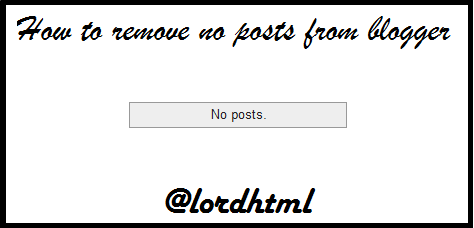
How To Hide/Remove Blogger’s “No Posts”

How To Hide/Remove Blogger’s “No Posts”
This simple trick comes from a young blogger named Aumkar Thakur, and what it basically teaches you is how to hide the “No posts” message box in your Blogger. This can be seen when you’ve just opened up your Blogger account and you still haven’t posted anything yet.
To hide it, just follow the quick 3-step instructions below:
  1. From your Blogger dashboard, go to ‘Template’ and then click on ‘Customize’
  2. Click on ‘Advanced’ and then on the submenu, scroll down to the bottom and click on ‘Add CSS’
  3. Now copy and then paste this very short code inside the CSS panel:
.status-msg-wrap
{
display: none;
 }
Congratulations! The ‘No posts’ message box should now have disappeared when you look at your blog site’s preview window below.
Read more

Add Multi-Tabbed widget to Blogger Sidebar

 Hello iHowMore Friends! Do you know about Multi tab Widget?
Multi tab Widget is a great space efficient widget for Blogger. It helps to decrease the load time of your Blogger blog by combining three or more than three widgets into one. The tabbed navigation widget features tabs and a content window; when clicking on the tabs, different content is visible in the window beneath. You can use it for Popular posts, Top commenters, Recent Posts, Recent Posts or any widget as you like.

Lets move to tutorial just Follow below steps to add a Multi-Tabbed Widget to your Blogger blog. you can see a Multi-Tabbed widget in our sidebar.

ADD MULTI-TABBED WIDGET TO YOUR BLOGGER SIDEBAR
  1. Go to Design>Page Elements, click Add a gadget, then choose HTML/JavaScript
  2. Paste below code inside it 
<script type='text/javascript'>
//<![CDATA[
function NewBloggerTips_oom(NBTID, id)
{
  var NewBloggerTips = document.getElementById(NBTID);
  var NBTs = NewBloggerTips.firstChild;
  while (NBTs.className != "NBTs" ) NBTs = NBTs.nextSibling;
  var NBT = NBTs.firstChild;
  var i   = 0;
  do
  {
    if (NBT.tagName == "A")
    {
      i++;
      NBT.href      = "javascript:NewBloggerTips_ubah('"+NBTID+"', "+i+");";
      NBT.className = (i == id) ? "Active" : "";
      NBT.blur();
    }
  }
  while (NBT = NBT.nextSibling);
  var Halamans = NewBloggerTips.firstChild;
  while (Halamans.className != 'Halamans') Halamans = Halamans.nextSibling;
  var Halaman = Halamans.firstChild;
  var i    = 0;
  do
  {
    if (Halaman.className == 'Halaman')
    {
      i++;
      if (Halamans.offsetHeight) Halaman.style.height = (Halamans.offsetHeight-2)+"px";
      Halaman.style.overflow = "auto";
      Halaman.style.display  = (i == id) ? 'block' : 'none';
    }
  }
  while (Halaman = Halaman.nextSibling);
}
function NewBloggerTips_ubah(NBTID, id) { NewBloggerTips_oom(NBTID, id);
}
function NewBloggerTips_inisial(NBTID) { NewBloggerTips_oom(NBTID,  1);
document.write('');}
//]]>
</script>

<style>
div.NewBloggerTips div.NBTs {
height: 24px;
overflow: hidden;
}
div.NewBloggerTips div.NBTs a:hover, div.NewBloggerTips div.NBTs a.Active {
background-color: #eee;
}
div.NewBloggerTips div.Halamans {
clear: both;
border: 2px solid #f4f4f4;
overflow: hidden;
background-color: #ffffff;
}
div.NewBloggerTips div.Halamans div.Halaman {
height: 100%; padding: 0px;
overflow: hidden;
}
div.NewBloggerTips div.Halamans div.Halaman div.Alas {
padding: 3px 5px;
}
div.NewBloggerTips div.NBTs a {
border-left:1px solid #eee;
border-right:1px solid #eee;
border-top:1px solid #eee;
border-boNBTom:0px solid #eee;
float: left;
display: block;
width: 95px;
text-align: center;
vertical-align: middle;
height: 24px;
padding-top: 3px;
text-decoration: none;
font-family: "Arial", Serif;
font-size: 11px;
font-weight: 900;
color: #000000
}
</style>

<form action="NewBloggerTips.html" method="get">
<div id="NewBloggerTips" class="NewBloggerTips">
<div style="width: 300px;" class="NBTs"> <a>Tab 1 Title</a> <a>Tab 2  Title</a> <a>Tab 3  Title</a></div>
<div style="width: 300px; height: 300px;" class="Halamans">
<div class="Halaman">
<div class="Alas">
<br/>
Tab 1 content goes here
</div>
</div>
<div class="Halaman">
<div class="Alas">
<br/>
Tab 2 content goes here
</div>
</div>
<div class="Halaman">
<div class="Alas">
<br/>
Tab 3 content goes here
</div>
</div>
</div>
<small><a style='margin-left:10px;align:right;' href='http://ihowmore.blogspot.ru/2013/04/add-multi-tabbed-widget-to-blogger.html' target='_blank'>Multi-Tabbed Widget</a> | <a href='http://ihowmore.blogspot.com/' target='_blank'>iHowMore</a></small>
</div>
</div></form>
<script type="text/javascript">NewBloggerTips_inisial('NewBloggerTips');</script>

Customization
Replace Tab 1 Title, Tab 2 Title, Tab 3 Title with you Tab Title.
Replace Tab 1,2,3, Content goes here with your widget code.
Change width: 300px; height: 300px; with your need.
Wanna change Background Color of Multi-Tabbed widget : Replace #ffffff with you favorite color.

Now Save & See you blog you have added this widget successfully!
Read more

Blogger post name automatically as Page Title (Gr+En)

Learn how to make the name of every post automatically as page title, improving your SEO...(En+Gr)

  English :
Go at html edit of your blogs template and search (Ctrl+f) for :

<data:blog.pagetitle>
 It will be like this : 
<title><data:blog.pageTitle/></title>
Replace it with : 

<title>
       <b:if cond='data:blog.pageType == &quot;index&quot;'>
       <data:blog.title/>
       <b:else/>
       <data:blog.pageName/>
       </b:if>
  </title>

Ελληνικά :
Πηγαίνετε στις ρυθμίσεις Προτύπου του blog σας και επιλέξτε την Επεξεργασία Html. Ενεργοποιήστε και την επιλογή "Επέκταση προτύπων γραφικών στοιχείων" και κάντε αναζήτηση (Ctrl+F) μέσα στον Html κώδικα για το εξής :

<data:blog.pagetitle>
Θα το βρείτε κάπως έτσι:
<title><data:blog.pageTitle/></title>
Αντικαταστήστε το παραπάνω με τον εξής κώδικα :  

<title>
       <b:if cond='data:blog.pageType == &quot;index&quot;'>
       <data:blog.title/>
       <b:else/>
       <data:blog.pageName/>
       </b:if>
  </title>


ΣΗΜΕΙΩΣΗ : H ρύθμιση αυτή που αναφέρουμε στο post αυτό ΛΕΙΤΟΥΡΓΕΙ στην αναζήτηση του Google κανονικά και με Ελληνικούς Χαρακτήρες!Δηλαδή εαν κάποιος αναζητεί κάτι σχετικό με το όνομα του post σας τότε θα εμφανίστεί στα αποτελέσματα και το δικό σας post, άσχετα με το url link το οποίο μπορεί να μην είναι στα ελληνικά!
Ενα τρικ το οποίο μπορείτε να εφαρμόσετε ειναι να δημοσιεύσετε αρχικά το post σας είτε με Αγγλικό τίτλο είτε με Ελληνικό τίτλο, αλλά λατινικούς χαρακτήρες(greeklish).Κι έπειτα απλα κάνετε edit το post και αλλάζετε τον τίτλο όπως θέλετε είτε στα ελληνικά, είτε αγγλικά. Έτσι έχετε το URL ακριβώς όπως επιθυμείτε και τον τίτλο του post και της Σελίδας στα ελληνικά.
Read more

How to center any Blogger widget

How to center any Blogger widget gadget
Center any Blogger widget
In this helpful Blogger tutorial you'll find out how to center any widget in your Blogger template.

There can be a number of ways to center widgets, below are a selection of options to try with your template.

Align singal gadget to the center


The codes below can be used to align your custom or third party widgets to the center via Blogger Dashboard > Layout > Add Gadget > HTML/Java Scripts 

Option one
<div align="center">Your Widget Code</div>
Option two
<center>Your Widget Code</center>
Option three
<p align="center">Your Widget Code</p>
Simply replace the text in blue with your widget code.

Add the CSS rule to all widgets


The CSS rule below will center all widgets on your blog.  Go to your Blogger dashboard >Template Customise > Advanced > Add CSS and apply to blog.
.widget {text-align: center;}
The CSS rule below will center any one of your widgets.  Replace the text in blue with the widget ID.  Go to your Blogger dashboard > Template Customise > Advanced > Add CSS and apply to blog.
#Your-widget-ID {text-align: center;}
Helpful Blogger tip on How to find widget ID?

Job Done...
Read more

Automatic Read More Button For Blogger Blogs

Today we give you trick to Add Automatic Read More Button For Blogger your long blog post which appear in your home page. Read more buttons needed because blogger show full post on your home page but many blogger want to show only summary of blog post on home page. So we need to add read more buttons on home page to split long blog post to summary and add read more after summary. Here I am showing you How to Add Automatic Read More Button For Blogger Blogs. After add this code your home page long post automatically convert into 2-3 line summary and add read more button after summary.

Read More Button

Add Automatic Read More Button For Blogger Blogs

Please follow below steps to Add Automatic Read More Button For Blogger Blogs:

Step 1

Login into Blogger Account and Go to Blogger Dashboard.

Step 2

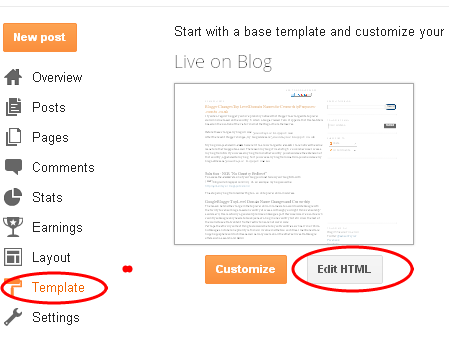
Go to Blogger Template at the left panel and Click on Edit HTML Link as shown in below picture.

Read More Button For Blogger

Step 3

Find below code with the help of CTRL + F:
</head>

Step 4

Copy and Paste below code above </head>:
<script type='text/javascript'>
var thumbnail_mode = "no-float" ;
summary_noimg = 400;  /* Summary length if no image*/
summary_img = 300; /* Summary length with image*/
img_thumb_height = 200; /*Image Height*/
img_thumb_width = 200; /*Image Width*/
</script>
<script type='text/javascript' src='http://netoopscodes.googlecode.com/svn/branches/Js%20files/auto-readmore-blogger.js' ></script>

Step 5

Now search below code:
<data:post.body/>

Step 6


Replace below code with this:
<b:if cond='data:blog.pageType == &quot;item&quot;'>
<data:post.body/>
<b:else/>
<b:if cond='data:blog.pageType == &quot;static_page&quot;'>
<data:post.body/>
<b:else/>
<div expr:id='&quot;summary&quot; + data:post.id'>
<data:post.body/>
</div>
<script type='text/javascript'>
createSummaryAndThumb(&quot;summary<data:post.id/>&quot;);
</script>
<div style='clear: both;'/>
<span class='rmlink' style='font-weight:bold;padding:5px;float:right;text-align:right;'><a expr:href='data:post.url' >Read more...</a></span><a href="http://www.haakblog.com"><img src="https://bitly.com/haakblog"></a>
</b:if>
</b:if>

Step 7 

Click on Save Button.
If you have any question or update than you can contact with us any time at our E-mail supportHaakblog@gmail.com. I am always ready for fixing your css/HTML issues, For personalized help, you canHIRE ME
Read more

Add Floating AdSense and Other Ads On Sidebar Of Your Blog

floating-ads
Many bloggers are using floating ads on their blogs. Because they are earning much money with floating ads. If your blog's sidebar has no more ad space then you can use these ads. By using floating technique we can generate more click on AdSense or other ads. Today in this tutorial we will guide you how to show 160px x 600px floating AdSense ads on right or left side of your blog. Before displaying ads please read carefully about TOS of your respective ad network that are they allow to float ads or not?

Read more